primary hardware architecture used in the majority of Android devices : ARM
most Emulators using: x86_64
1-Android Layers from Bottom to Top Link to heading
The Android platform consists of six components,The image below shows the Linux-based software stack Android uses, which contains these components
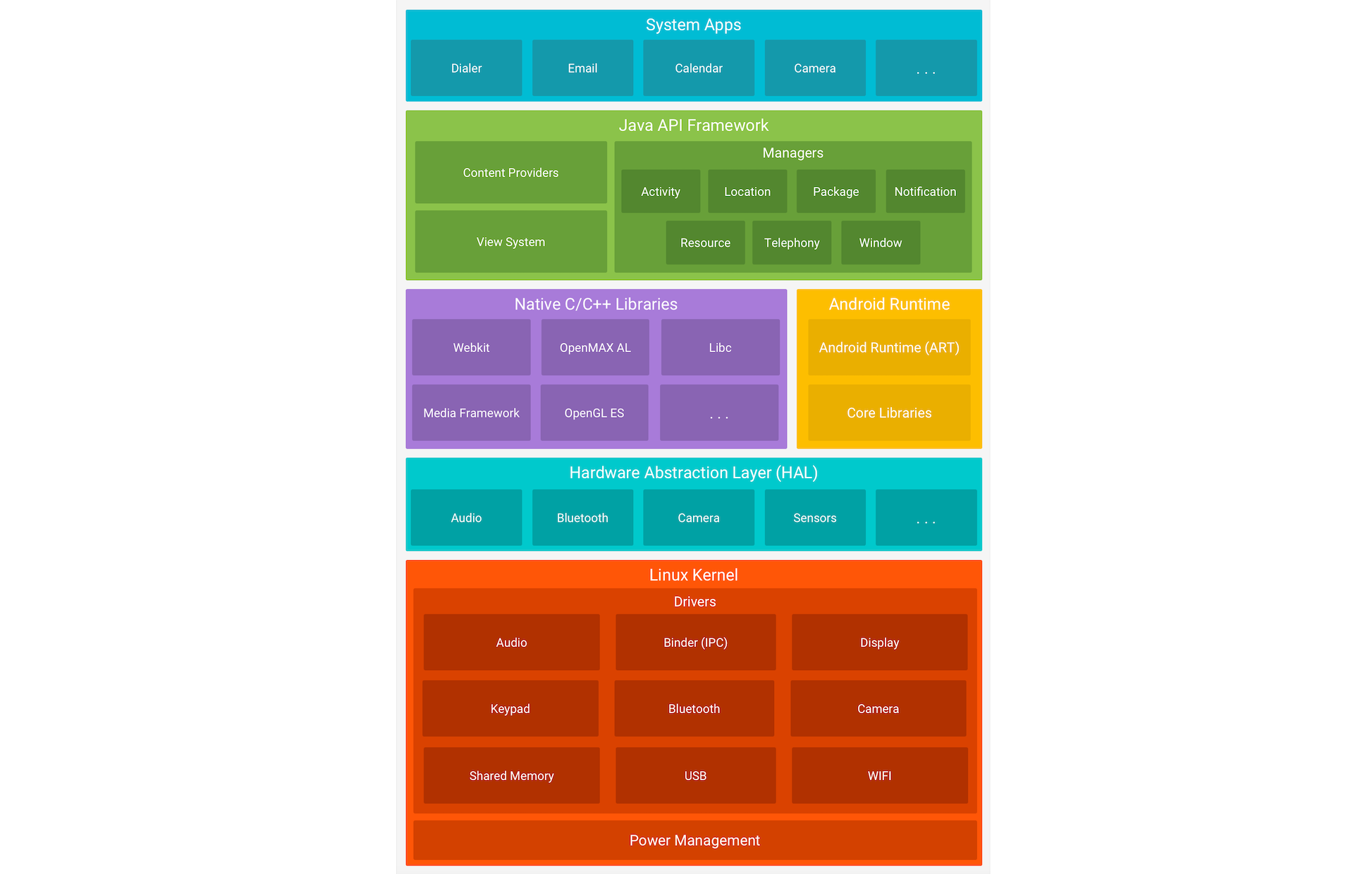
- Linux Kernel (The very bottom layer)
- The foundation of everything.
- It talks directly to the processor, camera, Wi-Fi, Bluetooth, screen, speakers, etc.
- It’s also the main source of your protection:
- Every app runs in its own isolated box (can’t see another app’s files).
- No app can eat all the RAM or CPU.
- No app can use GPS, camera, or phone without permission.
- Hardware Abstraction Layer – HAL
- A middle layer so Android can run on thousands of completely different phones.
- Samsung has different cameras and chips than Xiaomi than Google Pixel… each needs different commands.
- HAL is the one that tells Android: “Don’t worry, I’ll deal with this hardware no matter what brand it is – you just say ‘open camera’ and I’ll handle the rest.”
- Android Runtime – ART (The thing that runs apps now)
- Used from Android 5 (Lollipop) and above.
- When you install an app, ART converts it to super-fast code immediately (AOT compilation).
- That’s why apps open lightning-fast these days.
- Native C/C++ Libraries (Super-fast libraries)
- Written in C and C++ languages.
- Used by heavy games like PUBG, Call of Duty Mobile, Genshin Impact to get maximum speed and performance.
- Java API Framework
- All the ready-made tools that developers use:
- Buttons, lists, notifications, maps, camera functions, location, contacts, etc.
- All the ready-made tools that developers use:
- System Apps (The very top layer)
- The apps that come pre-installed from the factory:
- Camera, Messages, Phone dialer, Settings, Clock, Play Store, Browser, etc.
- The apps that come pre-installed from the factory:
Third Part: Dalvik VM (The Old Way)
- Was used from Android 1 up to Android 4.
- Converted the code only when you opened the app (slow).
- Got completely replaced by ART starting from Android 5.
2-Rooting Link to heading
The device is divided into two main parts:
/system → System files (completely locked, you can't modify them normally)
/data → Your data and application data
Important Directories Link to heading
Android's file structure is very similar to other Linux distributions. The directories listed below are some of the most important to consider while conducting Android app assessments.
| Directory | Description |
|---|---|
/data/data | Contains all the applications that are installed by the user |
/data/user/0 | Contains data that only the app can access |
/data/app | Contains the APKs of the applications that are installed by the user |
/system/app | Contains the pre-installed applications of the device |
/system/bin | Contains binary files |
/data/local/tmp | A world-writable directory |
/data/system | Contains system configuration files |
/etc/apns-conf.xml | Contains the default Access Point Name (APN) configurations. APN is |
| used in order for the device to connect with our current carrier’s | |
| network | |
/data/misc/wifi | Contains WiFi configuration files |
/data/misc/user/0/cacerts-added | User certificate store. It contains certificates added by the user |
/etc/security/cacerts/ | System certificate store. Permission to non-root users is not permitted |
/sdcard | Contains a symbolic link to the directories DCIM, Downloads, Music, Pictures, etc. |
3-Android Apps & Os Security Link to heading
Android Application Development Languages
The two main languages are Kotlin and Java
The Android SDK tools take the source code, images, files, and assets, and convert them all into a single file called APK (Android Package).
- The APK file is an archive (similar to a ZIP file) with the .apk extension, and it contains everything
the application needs to run: The compiled code (.dex) The manifest file (application data) Images, icons, and files Pre-built libraries
Application Sandbox Link to heading
Every Android app runs inside its own isolated security sandbox. This whole idea is built on the fact that Android is a multi-user Linux system, and every app is treated as a completely separate Linux user. Security works like this:
- Every app gets its own unique UID (User ID) that is different from all other apps.
- The app’s files belong only to that UID → no other app (or user) can read or write them.
- Every app runs in its own separate process, and each process has its own separate instance of the Android Runtime (ART).
- The system starts the process when the app is needed and kills it when RAM is low or when the app is closed.
- Principle of least privilege: the app only gets the exact permissions it really needs. Any extra permission must be declared in the
AndroidManifest.xmlfile and explicitly approved by the user. ⇒ TO read it use likejadx-gui
4-Application Signing Link to heading
Application Signing… Why Does It Exist?
To install any application on an Android phone or upload it to Google Play, the APK file must be signed.
This signature is like an app's fingerprint… its main purpose is to:
- Ensure that the application hasn't changed a single byte from the moment the developer created it until it reaches you.
- If someone modifies the application along the way (hacker, virus, website…) → the signature will be corrupted →
the phone will refuse to install it - Signing Ways:
1-Android Studio, via the
Generate Signed App Bundle / APKbuild option. 2-Thejarsigner/apksignertools. 3-Play App Signing.
APK Signing Steps
Create a file called params.txt with the necessary input data for keytool to generate a keypair.
Pipe the contents of params.txt into keytool to automate the key generation process. The key is stored in key.keystore.
Use zipalign to optimize myapp.apk. This allows uncompressed files to be accessed directly via mmap, creating an optimized application named myapp_signed.apk.
Sign the final app with apksigner using the key stored in key.keystore. The password is echoed through the pipe.
echo -e "password\npassword\njohn doe\ntest\ntest\ntest\ntest\ntest\nyes" > params.txt
cat params.txt | keytool -genkey -keystore key.keystore -validity 1000 -keyalg RSA -alias john
zipalign -p -f -v 4 myapp.apk myapp_signed.apk
echo password | apksigner sign --ks key.keystore myapp_signed.apk
example:
Janus (CVE-2017-13156):
The idea: The hacker would place a malicious DEX file at the beginning of the APK, and the v1 signature wouldn't see this part → the application would install normally and the malicious code would run.
Scheme versions are vulnerable to CVE-2017-13156: signature scheme v1
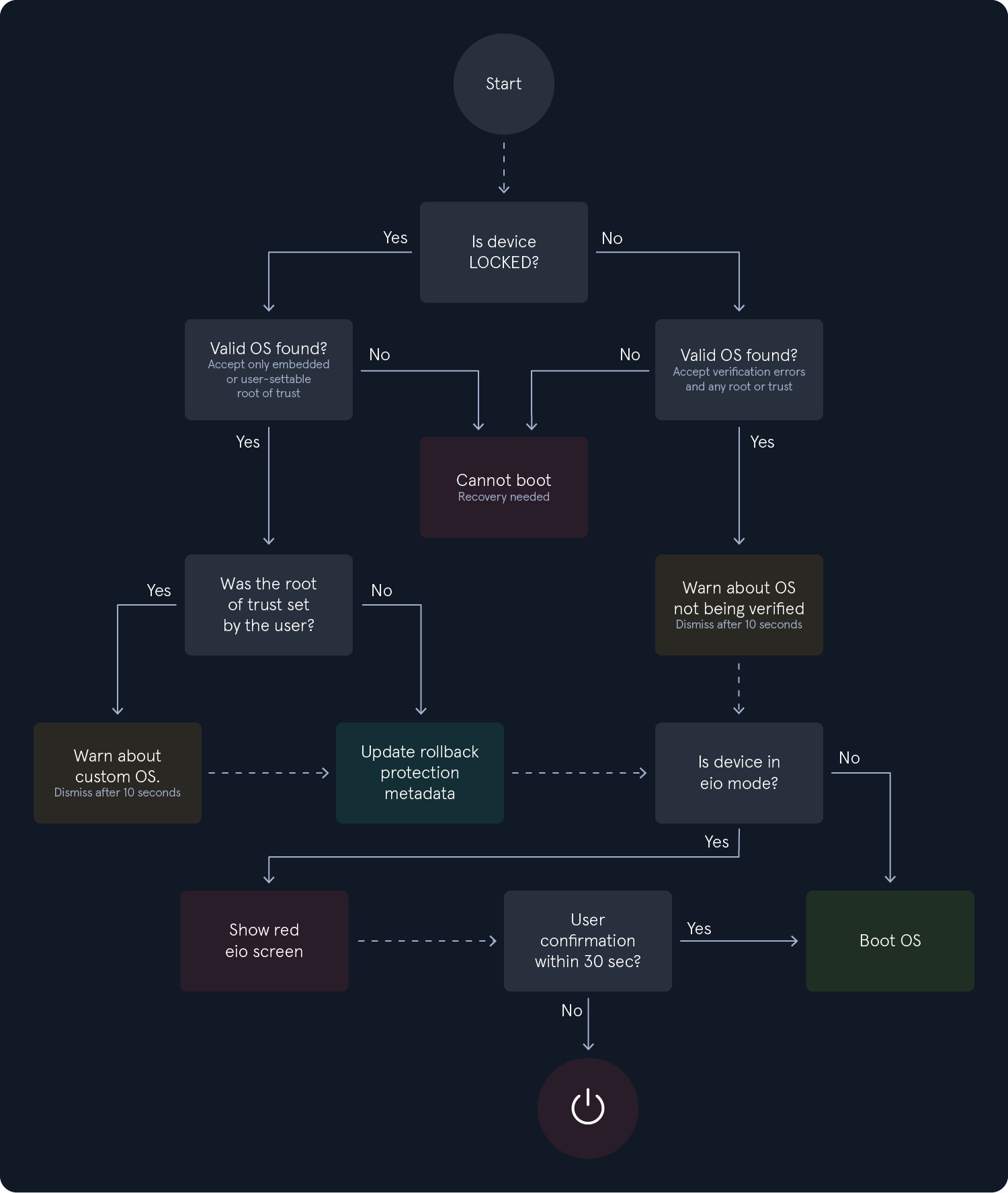
5-Verified Boot Link to heading
6-APK Structure Link to heading
The most important thing to remember
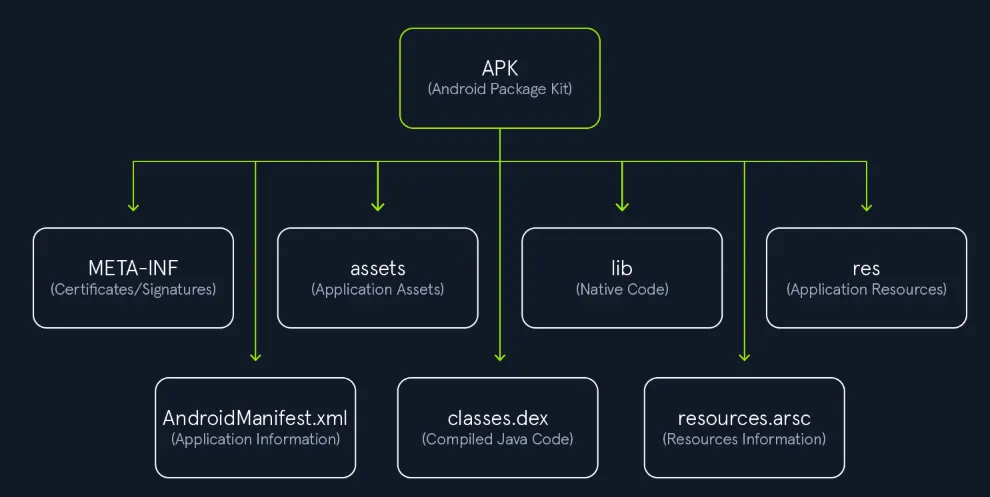
An APK is just a regular ZIP file… you can unpack it and repack it.
Each file inside has a very specific function.
If you modify anything inside it (even a single byte) → you must decompress the APK from the beginning, otherwise the phone will refuse to install it.
The file containing the actual code that runs is classes.dex → this is the heart of the application
| File | Description |
|---|---|
CERT.RSA | Contains the public key and the signature of CERT.SF. |
CERT.SF | Contains a list of names/hashes of the corresponding lines in the MANIFEST.MF file. |
MANIFEST.MF | Contains a list of names/hashes (usually SHA256 in Base64) for all the files of the APK, and is used to invalidate the APK if any of the files are modified. |
7-Android Apps & Development Link to heading
Native Apps Link to heading
app just build with java or kotkin
The application consists of two main parts:
Layout → An XML file named activity_main.xml located in the path app/res/layout/. This file contains the TextView, Buttons, Images, etc.
Copy Code → A Java or Kotlin file named MainActivity.java or MainActivity.kt
res/values/strings.xml → Here the programmer puts all the hardcoded strings in the application, such as passwords, API keys, secret messages... etc.
Native Code Link to heading
app just build with java or kotkin and Some files with c\c++ For encryption
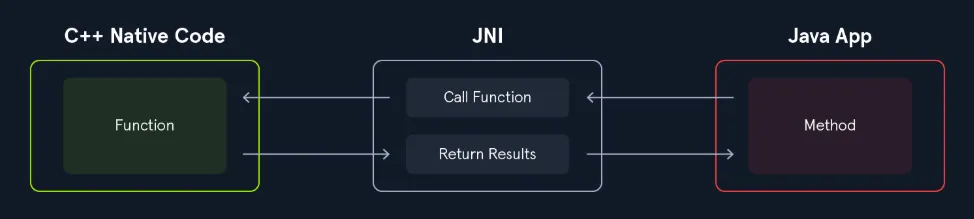
There are regular applications written in Java/Kotlin… but sometimes the programmer puts part of the code in C++ to make it faster or harder to reverse.
This part is converted into .so files (binary libraries) inside the APK.
To communicate with C++, Java uses JNI.
There are two ways to load the .so library:
- Static → From the moment the application starts → System.loadLibrary("Library_name");
- Dynamic → During runtime (
very dangerousif the path is controlled by the user) → System.load("/path/
function that returns the string inside the cpp file: NewStringUTF()
8-Javascript & WebViews Link to heading
WebView is an Android component that allows you to display web pages within an app without opening a browser.
Hybrid apps, such as those built with Cordova or Ionic, use WebView to display HTML, CSS, and JavaScript.
# load js
webview.getSettings().setJavaScriptEnabled(true);

# // Local file uploads are allowed via file://
webView.getSettings().setAllowFileAccess(true);

# // via file://
webview.loadUrl("file:///android_asset/html/index.html");
Application Frameworks
| Framework | Language | What You Find When Decompiling? | Short Answer |
|---|---|---|---|
| Flutter | Dart | C++ libraries → .so files | .so |
| Xamarin | C# | .NET libraries → .dll files | .dll |
| React Native / Cordova / Ionic | JavaScript + HTML | Uses WebView + JavaScript → vulnerable to web attacks (XSS, etc.) | web |
9-Android Application Components and Interprocess Communication Link to heading
| Component | Meaning / What It Does |
|---|---|
| Activities | The screens the user sees (UI). |
| Services | Background work with no user interface. |
| Broadcast Receivers | Receive system or app-wide signals/events. |
| Content Providers | Share data between applications. |
Activities Link to heading

An Activity is a single screen within an app (such as the login screen, home screen, settings screen, etc.).
It's the part of the app that the user interacts with.
Activity Lifecycle
| Lifecycle Method | When Is It Called? |
|---|---|
onCreate() | When the screen (Activity) is first created → all initialization happens here (API keys, secrets, config, etc.) |
| onStart() | The screen becomes visible to the user |
| onResume() | The screen becomes active and the user can interact with it |
| onPause() | The user opened another screen on top or partially left the app |
| onStop() | The screen is completely hidden |
| onDestroy() | The screen is destroyed (app closed or system freeing memory) |
| onRestart() | The screen is coming back after being stopped |
The most important function of Pentester is onCreate() inside MainActivity
How do we open a new Activity?
We use something called an Intent (a message that tells the system: Open this screen).
Two methods:
startActivity(intent) → Opens a new screen (without waiting for a response).
startActivityForResult(intent, requestCode) → Opens a screen and waits for a result (like a selection screen).
How do we know that this Activity is the starting point of the application?
The AndroidManifest.xml file must contain code like this:
<activity android:name=".MainActivity">
    <intent-filter>
        <action android:name="android.intent.action.MAIN" />
        <category android:name="android.intent.category.LAUNCHER" />
    </intent-filter>
</activity>
if u see
<activity android:name=".SecretActivity" android:exported="true" />
→ This means any other application on the phone can open this screen
Services Link to heading
A service is an Android component that runs in the background without any user interface.
This means the user can close the app and exit, and the service will still be running.
Common examples:
- Playing music (like Spotify when you exit the app and the song is still playing)
- Downloading large files in the background
- Repeatedly sending your location to the server (like delivery apps)
The three types of services
| Type | Description | Allowed on Android 8+? | How to Start It? |
|---|---|---|---|
| Foreground Service | Must inform the user it’s running → always shows a persistent notification in the status bar | Allowed to run all the time | startForegroundService() |
| Background Service | Normal background work, user doesn’t need to know | Not allowed to run for more than a few minutes if the app isn’t open | startService() (very limited) |
| Bound Service | Works like a small server → other apps or components inside the same app can bind and communicate with it | Fully allowed | bindService() |
| How It Was Started | Lifecycle Sequence |
|---|---|
| startService() or startForegroundService() | onCreate() → onStartCommand() → onDestroy() |
| bindService() | onCreate() → onBind() → onUnbind() → onDestroy() |
We need to know the Service in the Manifest. Like the Activity, you need to write the Service in the AndroidManifest.xml file like this:
<service android:name=".MyForegroundService"/>
<service android:name=".MySecretService" android:exported="true"/>
Broadcast Receivers Link to heading
What is a Broadcast Receiver?
It's a component in Android whose function is to "listen" to certain events and respond to them immediately.
It's like a radio that listens for a specific signal and starts playing when the signal arrives.
Common examples:
- When you plug in the charger to your phone → the system sends a signal called ACTION_POWER_CONNECTED
- When the internet connection is active or disconnected
- When an app downloads a file and sends a signal to other apps telling them "Data is ready"
The Broadcast Receiver's role is to receive these signals and do something (for example, open an Activity, start a Service, log… etc.).
Broadcast Receivers also need to be declared in the AndroidManifest.xml file.
<manifest ...>
    <application ...>
        <receiver android:name=".MyBroadcastReceiver">
            <intent-filter>
                <action android:name="android.intent.action.ACTION_POWER_CONNECTED" />
                <action android:name="android.intent.action.ACTION_POWER_DISCONNECTED" />
            </intent-filter>
        </receiver>
    </application>
</manifest>
How does it work?
You need to create a class that inherits from BroadcastReceiver. You need to modify the only important function in it: onReceive()
public class MyBroadcastReceiver extends BroadcastReceiver {
    @Override
    public void onReceive(Context context, Intent intent) {
        if ("android.intent.action.ACTION_POWER_CONNECTED".equals(intent.getAction())) {
            // الشاحن اتوصل
            Toast.makeText(context, "الشاحن وصل!", Toast.LENGTH_LONG).show();
        }
    }
}
We need to record it in AndroidManifest.xml
If the Receiver is written in the Manifest and contains android:exported="true" or even without writing exported at all (in older versions), any other application or even ADB can send it an Intent and run it!
Content Providers Link to heading
What exactly is a Content Provider?
It's the fourth and final component of a core application, and its sole function is to allow different applications to share data with each other in a secure and organized way.
A real-world example:
The Contacts app on your phone has a Content Provider.
Any other application (like WhatsApp or Telegram) can request this Content Provider to retrieve names and phone numbers → without directly accessing the database.
How does it work?
Data can be located in:
- An SQLite database
- Files in internal or external memory
- Even on a remote server
Each operation is performed using a standardized method called CRUD: Create → Add data Read → Read data Update → Modify data Delete → Delete data
To read data from any Content Provider, use this function:
getContentResolver().query(...)
The function responsible for the read operation (Read) is query()
<provider
    android:name=".MyContentProvider"
    android:authorities="com.example.myapp.provider"
    android:exported="false" />
Very important:
android:authorities → This is the URL of the provider (it must be unique).
android:exported="false" → If you leave it true or don't write it at all (in older versions) → Any other application can read the data!
content://
Intent Link to heading
An Intent is a message you send to tell the system or another application:
"Do something specific for me now."
Intents are what trigger almost everything in Android:
Open a new screen → Intent Start a background service → Intent Send a broadcast → send intent Share an image or link with another application → Intent
| Type | Description | Example |
|---|---|---|
| Explicit Intent | You know exactly which Activity, Service, or Receiver you want to launch (you specify the class name). | new Intent(this, SecretActivity.class) |
| Implicit Intent | You don’t know exactly which app/component will handle it — you just say “any app that can do this, go ahead.” | Intent.ACTION_VIEW + URL → Android will open the browser or any app capable of handling links |
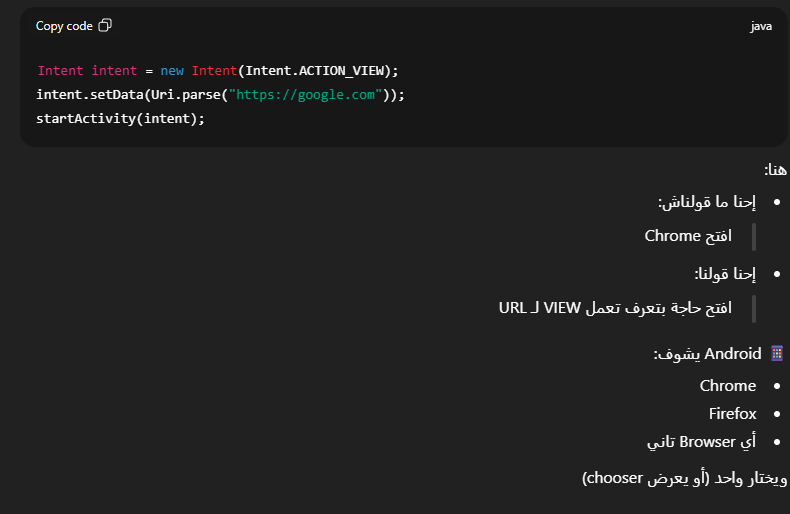
The Intent can carry additional data in the form of a key-value (like JSON).
Why is an Intent so dangerous in a Pentest?
If an Activity, Service, or Receiver is set to exported="true" → you can send it an Intent from ADB or another application.
You can include any dangerous extras in the Intent (tokens, passwords, commands, etc.).
You can open hidden screens, start secret services, or read data from a Content Provider
The putExtra() method is used within an Intent to pass data between Android components (Activities / Services / Receivers) in the form of key‑value pairs. : putExtra()
Binders Link to heading
Binder allows an application (or even a different process within the same application) to call functions that exist in another process as if they actually exist in it!
This means you can do something like Remote Control: you ask a remote service to execute any function for you and return the result immediately.
How does it work?
Create a file with the .aidl (Android Interface Definition Language) extension. → This file will define the functions you want to call remotely.
interface ICalculator {
    int add(int a, int b);
}
The service works normally but inherits from the stub generated by the AIDL:
public class CalculatorService extends Service {
    private final ICalculator.Stub binder = new ICalculator.Stub() {
        public int add(int a, int b) { return a + b; }
    };

    @Override
    public IBinder onBind(Intent intent) {
        return binder;   // هنا الـ Binder بيرجع للعميل
    }
}
Binder is the only way to call real functions (not just Intents) from another application or a different process.
If the Service is set to android:process=":remote" →, it's running in a separate process, and therefore any Binder within it will run via a real IPC.
Exploiting Binder is one of the most dangerous attacks in Android (we'll see this in the advanced modules).

Deep Links Link to heading
What is a Deep Link?
It's a link that, when clicked, opens the app directly and takes you to a specific screen within it (not a browser).
Real-life examples:
Link in an email: app://spotify/song/12345 → Opens Spotify and plays the song immediately.
Link in WhatsApp: https://www.instagram.com/p/ABC123/ → Opens Instagram to this post
| Type | How It Looks on a Website | Scheme in Manifest | Ownership Verification? | Pentest Risk Level |
|---|---|---|---|---|
| Standard Deep Link | app://myapp/products/cpu | app (any custom scheme you choose) | No verification at all → any app can hijack the link | Very High (easy to spoof) |
| Android App Link | https://www.myapp.com/products/cpu | https | Yes → you must prove domain ownership | More secure (but still may have vulnerabilities) |
Types of Deep Links Link to heading
Standard Deep Link Link to heading
- Example:
app://myapp/products/cpu
- Requires an Intent Filter in
AndroidManifest.xmlfor the receiving Activity:
<activityandroid:name=".ProductsActivity">
<intent-filter>
<actionandroid:name="android.intent.action.VIEW"/>
<categoryandroid:name="android.intent.category.DEFAULT"/>
<categoryandroid:name="android.intent.category.BROWSABLE"/>
<dataandroid:scheme="app"
android:host="myapp"
android:pathPrefix="/products/"/>
</intent-filter>
</activity>
- Intent Filter components:
android:scheme="app"→ the protocol typeandroid:host="myapp"→ hostandroid:pathPrefix="/products/"→ path inside the app
- Handling the link in code:
Uridata= getIntent().getData();
StringProductName= data.getLastPathSegment();// "cpu"
⚠️ Security risk:
- Android does not verify ownership of custom schemes, so any malicious app can declare itself as the default handler and exploit the link.
Android App Link Link to heading
- Example:
https://www.myapp.com/products/cpu
- Requires https + domain ownership verification (
assetlinks.json) - Same Intent Filter setup but with scheme =
httpsand host =www.myapp.com:
<dataandroid:scheme="https"
android:host="www.myapp.com"
android:pathPrefix="/products/"/>
✅ Advantages:
- If the app is not installed → opens in a browser
- Ensures only the verified app can handle the link
- Prevents malicious apps from hijacking the link
⚠️ Security risk if poorly implemented:
- Passing sensitive data in the URL (
uid,token) without verification - Could be exploited to access other users’ data (IDOR)